
Overview
To set up a cashflow with events that occur at regular intervals, the easiest way is to add them manually.
However, when there are events that occur at irregular intervals, this would require a lot of repititive work, with the possibility for mistakes.
One of those situations could be when you regularly need to calculate interest on a sum based on published rate data. This would require you to add the same rate changes over and over again for each document you create.
Another situation could be when you want to check or use a large number of irregular payment data that is stored in a spreadsheet.
To save you a lot of work and avoid mistakes, we provided the possibility to import payment and rate data as tab separated text files.
Import file requirements
File format
For InterestThing to be able to import the data the file needs to contain plain text with tabs between the values. The data needs to be preceded by the appropriate headers (also separated by tab characters).
To create a plain text file in Pages, open a new document, add the headers and data, then select File > Export To > Plain Text File… to save it.
Plain text files with the extension".txt" will usually open in TextEdit.
To create a plain text file in Numbers, open a new document, add the headers and data, then select File > Export To > TSV… to save it.
Plain text files with the extension".tsv"will usually open Numbers and import them into a new Numbers document, which needs to be exported as TSV to save it in the correct format.
After importing a dialog will be displayed with the number of items that were imported, and the imported items will be selected.
If the import file contains errors, you can save the found items to a new file, so you can edit that file or compare it to the original import file.
Dates
Dates need to be formatted as YYYY-MM-DD.
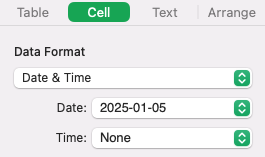
Dates in a Numbers spreadsheet can be easily converted to YMD format by selecting the column that contains the dates and then click "Cell" in the Format sidebar. Select the following settings for Data Format:
Amounts and rates
Values for amounts and rates need to be formatted in your current locale.
Dates in a Numbers spreadsheet can be easily converted by selecting the column that contains the dates and then click "Cell" in the Format sidebar. Select the following settings for Data Format:
Extra columns and rows
When importing data, InterestThing will search the text file for the required headers. Once these are detected, it will scan the following lines for valid data items.
Everything before the headers will be ignored, als well as empty lines or rows that don't contain valid data items.
Importing dates and amounts
Imported files need to have at least two columns with headers "Date" and "Amount". An optional third column with the header "Comment" can contain comments.
Negative amounts will be imported as Outflow events, and positive amounts will be imported as Inflow events.
To import amount data, select File > Import…, then select Dates and Amounts and click the Import… button.
Importing dates and rates
Imported files need to have at least two columns with headers "Date" and "Rate". An optional third column with the header "Comment" can contain comments.
The data will be imported as Rate change events.
To import rate data, select File > Import…, then select Dates and Rates and click the Import… button.